On this page
- What business verification is, and why it matters
- Before you start: a five-minute readiness check
- Step 1: Confirm the Business Manager is eligible
- Step 2: Make Business Info match your documents exactly
- Step 3: Choose documents Meta will accept
- Step 4: Verify your domain
- Step 5: Complete the confirmation step
- Step 6: Submit and respond to follow-ups
- What to do if verification is declined
- After verification: what changes
- Frequently asked questions
- How long does Facebook Business Manager verification take?
- Does business verification cost anything?
- Can I verify a business registered in another country?
- Can I verify without a website?
- When it makes sense to get help
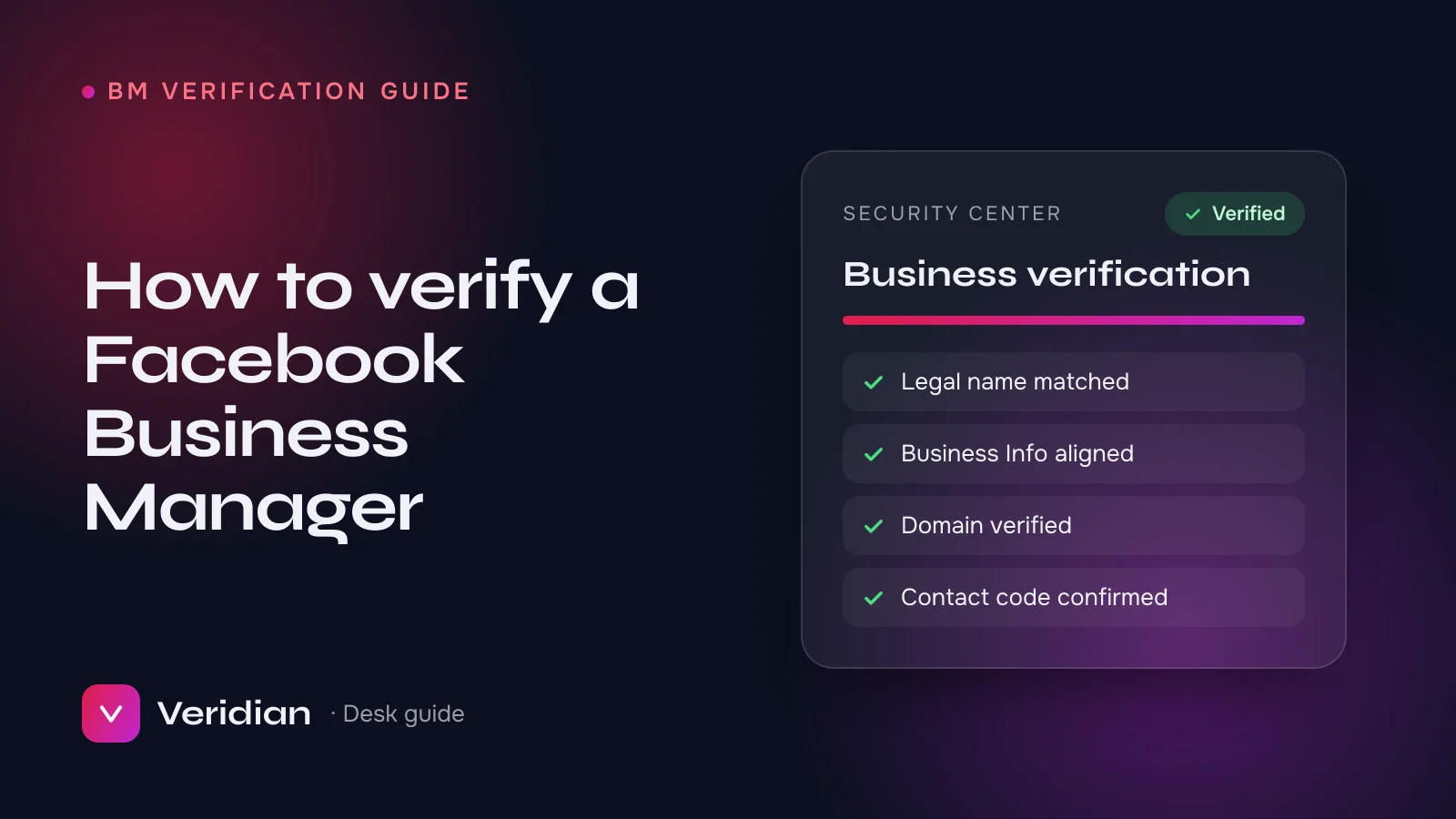
To verify a Facebook Business Manager, open Security Center in Meta Business Suite, start business verification, enter your legal business name, address, phone and website exactly as they appear on your official documents, upload those documents, verify your domain and confirm a code sent to your business contact details. Meta then reviews the request, usually within two to fourteen days. The rest of this guide walks through each step in the order the desk follows on every verification we prepare, and explains where requests most often go wrong.
Key takeaways
- Verification is free and done entirely inside your own Business Manager.
- Business Info must match your documents character for character, including suffixes such as Ltd or LLC.
- Pair a legal-name document with a separate proof of address unless one document shows both.
- Verify your domain before you submit; it strengthens the request and you will need it anyway.
- After a decline, fix the cause before resubmitting. Repeated blind attempts slow future reviews.
What business verification is, and why it matters
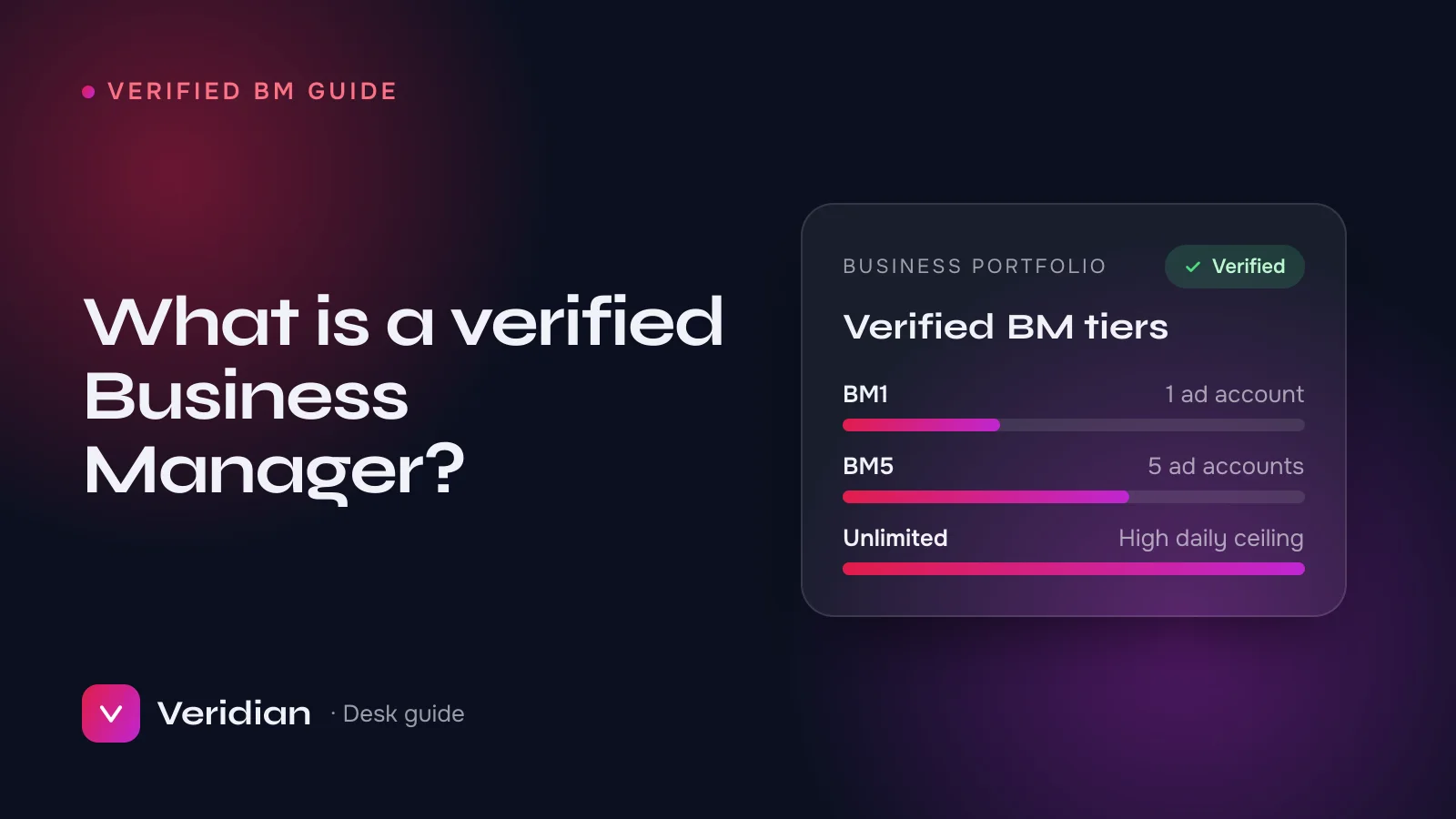
Business verification is Meta's way of confirming that a Business Manager (now part of Meta Business Suite) belongs to a real, registered organisation. Until a business is verified, Meta treats it more cautiously: it can limit how many ad accounts the business creates, how quickly spend can grow, and which features are available. Verification is also a prerequisite for several things buyers ask us about every week, including higher WhatsApp Business API messaging limits, display name approval and advanced permissions in Meta app review.
It is worth being clear about what verification is not. It does not make an account immune to policy enforcement, and it does not fix tracking or creative. It simply removes one large question mark from Meta's view of your business.
Before you start: a five-minute readiness check
Most of the delays we see could have been avoided before the request was ever submitted. Check these first:
- Admin access. You need full control of the Business Manager. Partial or employee access cannot start verification.
- A registered business. Verification is for organisations with legal registration. Sole traders can often verify, but the documents must still show a trading name or registration.
- A website on your own domain that displays the same business name.
- A contact route you control: a business phone that can receive a call or SMS, or a business email on your domain.
- Clean account standing. Resolve any active restrictions first; a restricted account cannot be verified.
Step 1: Confirm the Business Manager is eligible
Open Business Settings → Security Center. If you see a Start verification button, the account is eligible. If the button is missing, there are usually three explanations: the business is already verified, the Business Manager is very new and needs a little activity first, or there is a restriction to resolve. Meta adjusts these eligibility rules from time to time, so if the button is missing and none of these apply, check the Meta Business Help Center for the current guidance.
Step 2: Make Business Info match your documents exactly
Go to Business Settings → Business Info and set the legal business name, address, phone number and website. This is the step that decides most outcomes. A reviewer compares these fields with your documents line by line, and small differences count as mismatches:
| Field | Common mismatch | What to enter |
|---|---|---|
| Legal name | "Northwind Trading" vs "Northwind Trading Ltd" | The full legal name, suffix included |
| Address | Missing unit or floor; abbreviations | The address exactly as printed on your address document |
| Phone | A personal mobile not linked to the business | A number you can answer that is associated with the business |
| Website | A marketplace profile or a page on someone else's domain | Your own domain, showing your business name |
From the desk: when a client tells us they have been declined "for no reason", the cause is a Business Info mismatch more often than everything else combined.
Step 3: Choose documents Meta will accept
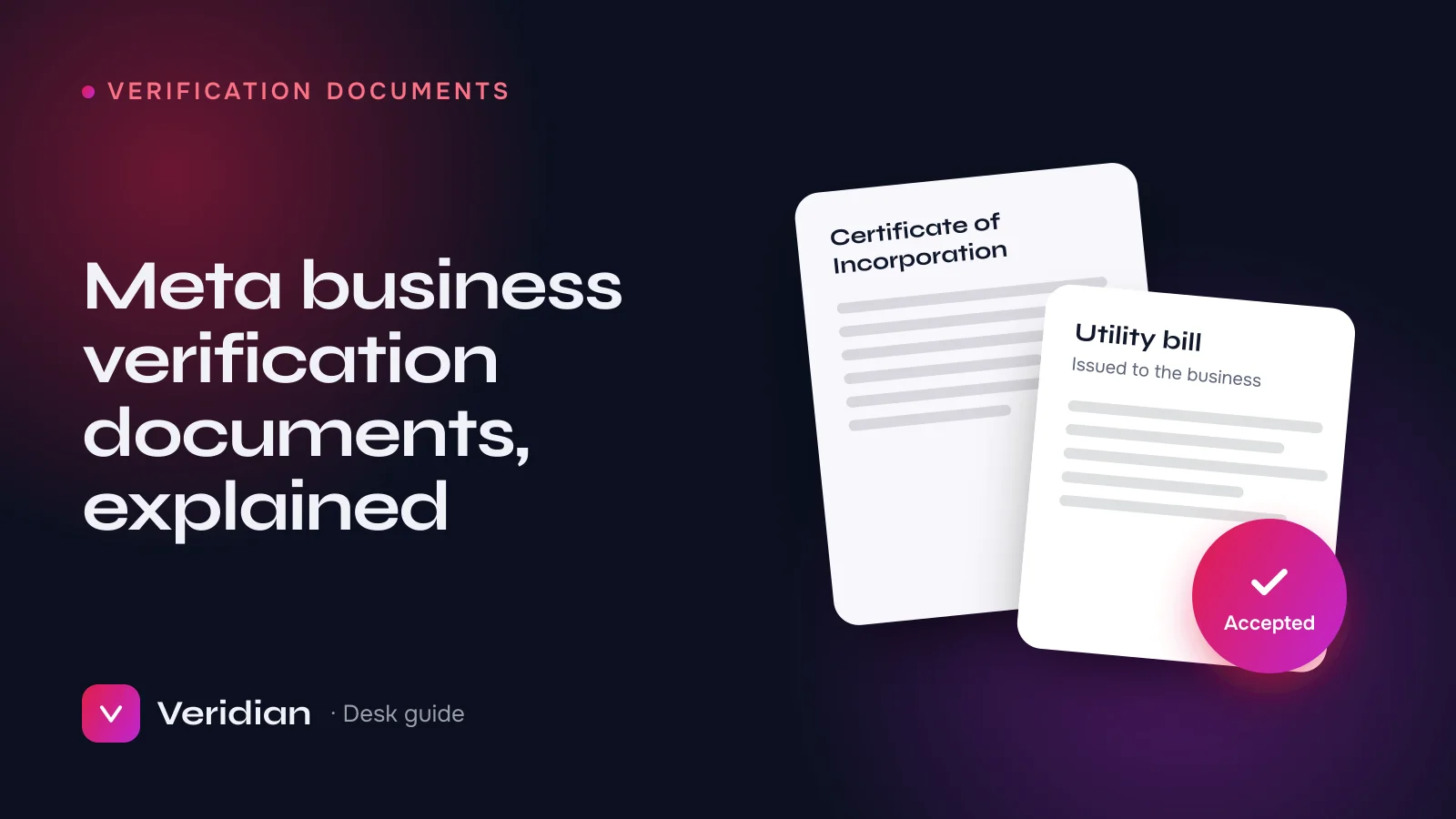
Your file has to answer two questions: is this the business's legal name, and is this its address or phone number? Some documents answer both; often you need one of each. Commonly accepted examples include a certificate of incorporation or business registration, a tax or VAT registration, and a recent utility bill or bank statement issued to the business. Meta shows the documents it accepts for your country inside the verification flow, and that list always takes priority over generic advice. For a deeper look, see our guide to Meta business verification documents.
Upload clear, complete scans of the full page. Cropped photos, screenshots and glare are refused even when the information on them is correct. And never edit a document: any alteration is grounds for refusal and can affect the account itself.
Step 4: Verify your domain
Under Brand Safety → Domains, add your domain and verify it using one of three methods:
- DNS TXT record added at your domain registrar or DNS host. This is the most durable method and survives website redesigns.
- Meta tag added to the head of your homepage. Quick, but easy to remove by accident during a theme change.
- HTML file upload to your site's root directory.
DNS changes can take a little while to propagate. If verification fails immediately after adding the record, wait and try again rather than adding duplicate records.
Step 5: Complete the confirmation step
Meta confirms that the business can be reached at the contact details you entered, typically by sending a code to the business phone or email, or by confirming through the verified domain. Decide which route you will use before you submit. A surprising number of requests stall at this final step because the code goes to a phone line nobody answers.
Step 6: Submit and respond to follow-ups
Once submitted, the request appears as under review in Security Center. Most decisions arrive within two to fourteen days, sometimes faster. Meta occasionally asks for an extra or different document. When that happens, respond quickly and send exactly what was asked for, issued to the same legal name. Do not open a second request on top of a pending one.
What to do if verification is declined
Read the reason in Security Center carefully, then work through this order:
- Compare Business Info with the legal-name document, character by character.
- Compare the address with the address document, including unit numbers.
- Check that every document is issued to the business, not to a person.
- Check document dates and scan quality.
- Confirm the domain is verified and shows the business name.
Fix the cause, then resubmit once. Repeated submissions of the same file rarely change the outcome and tend to slow later reviews.
After verification: what changes
Once verified, Security Center shows the business as verified. Over the following weeks, many businesses see more room to create ad accounts and scale spend, assuming account health and payment history are good. Verified businesses can also request higher WhatsApp Business API messaging tiers and display names more smoothly. If WhatsApp is next on your list, read WhatsApp Business API or the Business app.
Frequently asked questions
How long does Facebook Business Manager verification take?
Preparation can be done in a day or two. After submission, Meta's review usually takes between two and fourteen days.
Does business verification cost anything?
No. Meta does not charge for business verification. Any cost is for help preparing the request.
Can I verify a business registered in another country?
Yes, as long as every document is issued to that business and matches the details in Business Info. Meta verifies the business, not the location of its owner.
Can I verify without a website?
In most cases a website on your own domain is expected, and a verified domain strengthens the request.
When it makes sense to get help
If you have been declined more than once, if your documents come from one country and your Business Info from another, or if you simply cannot afford another two-week wait, a second pair of eyes saves time. Our Business Manager verification service prepares the full file inside your own BM, submits it through partner access and resubmits once at no extra charge if Meta declines. If a campaign cannot wait for Meta's review at all, the desk also holds already verified Business Managers with replacement cover. Questions about your specific case? Ask a broker.
Notes from the brokers who source, inspect and hand over every asset on the ledger, and who prepare Meta business verifications, WhatsApp API launches and ad accounts for clients every week.